Table of Contents
- Start With the Right Tools for Custom Product Design
- Define Your Layout and Composition Before You Design
- Step-by-Step: How to Create Professional Custom Designs
- How to Prepare Files for Custom Printing and Engraving
- Common Design Mistakes That Ruin a Professional Look
- Design for the Manufacturing Method, Not Just the Screen
- Conclusion: Turn Your Custom Designs Into a Finished Product
- Frequently Asked Questions
Last Updated: September 6, 2026
Professional custom designs are the difference between a generic gift and a keepsake that stops people mid-conversation. Whether you are designing a single image for a 3D acrylic lamp or a full layout for an engraved wooden plaque, the principles remain the same: clarity, intentional composition, and technical precision. This guide from IL-ĦSIEB KOLLOX walks through the exact workflow used to turn a photo into a polished, print-ready product.
Start With the Right Tools for Custom Product Design
The best tools for custom product design match your skill level and project complexity. Vector-based software like Adobe Illustrator or Affinity Designer is the industry standard for logos, text, and scalable graphics, while raster editors like Adobe Photoshop excel at photo manipulation and texture work. For beginners, free tools like Canva and Photopea offer surprisingly strong layering and export controls.
A common mistake is choosing software before understanding the product you are designing for. A flat, printed cushion requires a different toolset than a curved 3D crystal. Many businesses find a hybrid approach works best: build your layout in a vector program, then finish photo-heavy elements in a raster editor.
Vector vs. Raster: The Core Distinction
Understanding the difference between vector and raster formats is the first step in tool selection. Vector graphics (AI, SVG, EPS) are built from mathematical paths, scaling infinitely without losing quality, essential for logos, monograms, and elements reproduced at different sizes. Raster graphics (PSD, PNG, JPG) are made of pixels with a fixed resolution, making them the right choice for photographic content, complex gradients, and textured backgrounds.
Software Comparison by Use Case
Adobe Illustrator remains the industry benchmark for vector work, with unmatched pen tool, pathfinder, and typography controls. However, it has a steep learning curve and a subscription cost that may be prohibitive for hobbyists.
Affinity Designer is the strongest challenger to Illustrator, offering a one-time purchase model and nearly equivalent vector tools. Its interface is intuitive, and it handles complex layer organization well. Many print-on-demand designers use it exclusively for product mockups and layout work.
Adobe Photoshop is the standard for raster editing. Its selection tools, layer masks, and color correction capabilities are essential for photo-based custom designs.
Canva Pro has evolved into a legitimate tool for professional custom designs, particularly for beginners. Its template library includes product-specific dimensions for common items, and the background remover and brand kit features streamline repetitive tasks. However, its export options are limited, you cannot control color profiles or DPI settings beyond preset options.
Photopea is a free, browser-based editor that mimics Photoshop's interface and supports PSD files. It is an excellent bridge tool for those who need advanced raster editing without the subscription cost, though performance can lag with very large files.
Matching Tools to Product Types
Different manufacturing methods impose different software requirements. For sublimation printing, raster editors are typically sufficient since the final output is a full-color image. For laser engraving, vector software is often preferred because the engraver reads paths directly, producing cleaner cuts and more precise lines. For UV printing on rigid materials, either format works, but the design must be prepared with the specific color profile of the printer in mind.
Define Your Layout and Composition Before You Design
Most amateur designs fail because the creator opens a blank canvas and starts placing elements immediately. Professional work begins with a plan for layout and composition, the arrangement of visual elements that guides the viewer's eye.
Start by sketching a rough thumbnail of where your main subject, text, and negative space will sit. Apply the rule of thirds: imagine your canvas divided into a 3x3 grid and place key elements along those lines or intersections. Visual hierarchy dictates that the most important element should be the largest or most contrasted item on the canvas.
Step-by-Step: How to Create Professional Custom Designs
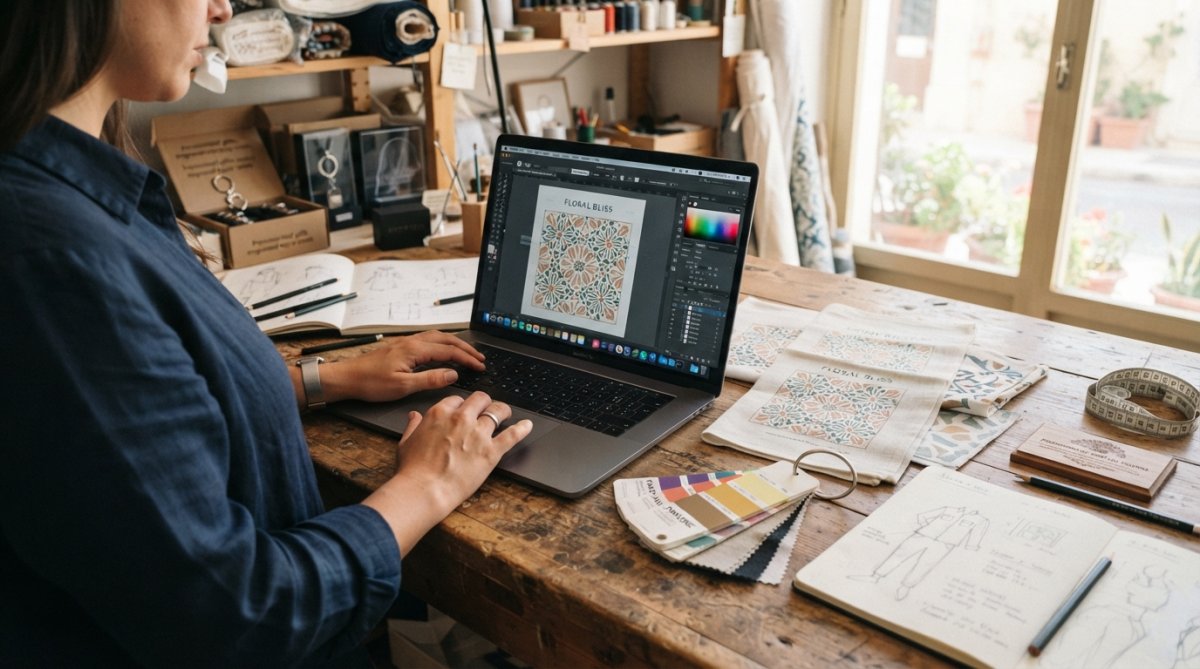
This is the core workflow. The 3-step process below has generated reliable results across thousands of product types. Each step builds on the last, so resist the urge to jump ahead to colors or effects before your foundation is set.
Step 1: Set Up Your Canvas and Resolution
Resolution is the single most important technical setting for custom designs. For print products, you need a minimum of 300 DPI (dots per inch) at the final physical size (printingforless.com). A design for an A5 cushion cover requires a canvas of at least 1748 x 2480 pixels to avoid pixelation. For digital use, 72 DPI is acceptable, but it will look blurry if printed later.
To set this up in most software: create a new document, enter the physical dimensions of your product, and set the resolution to 300 DPI. If you are uploading to a print provider, check their exact template specifications. Many providers offer product-specific templates that include safe zones for text and bleed areas for edge-to-edge printing.
Step 2: Build a Simple Color Palette and Typography System
Color and typography are where personality enters the design, but restraint is key. A professional design typically uses no more than two to three primary colors and one or two font families. Choose a palette that complements the product material: high-contrast colors work well on acrylic, while muted tones often suit natural wood engraving.
For typography, pair a strong display font for headlines with a highly readable body font. Avoid using more than two font families, as mixing multiple decorative fonts is a hallmark of amateur design. Ensure your text has sufficient contrast against the background image, and never place text over busy areas of a photo without adding a subtle overlay or drop shadow for readability.
Step 3: Arrange Elements With Visual Hierarchy in Mind
Now assemble the layout using your composition sketch. Place the primary subject first, then layer supporting elements around it. Use alignment tools to ensure edges are consistent, maintain even spacing, and group related items such as a name and date so they read as a single unit.
Layering is critical here. Keep your file organized with clearly named layers, such as "Background," "Photo," "Text," and "Decorative Elements." This speeds up edits and allows you to toggle visibility for different product variations. Before moving on, zoom out to 50% and view the design as a whole. If any element feels unbalanced or the eye does not naturally travel from the main subject to the secondary text, adjust sizing and spacing now.
How to Prepare Files for Custom Printing and Engraving
Preparing files for custom printing is the step where technical accuracy determines success. Export your final design as a high-resolution PNG or PDF, depending on the product. PNG supports transparency, which is essential for designs on clear acrylic or engraved surfaces where you want the background to remain unprinted. PDF is preferable for multi-page proofs or when the provider requires vector text for sharpness.
Color Modes: RGB vs. CMYK vs. Grayscale
One of the most overlooked technical details is the color mode of your file. Screens display colors in RGB (Red, Green, Blue), while most commercial printing presses use CMYK (Cyan, Magenta, Yellow, Black). Sublimation and digital inkjet printers often expect RGB files because they convert to their own color profiles internally, but traditional offset or large-format printers require CMYK.
The practical implication is that colors on your screen will not perfectly match the printed result. Bright neon colors often print duller in CMYK because the CMYK gamut is smaller. To minimize surprises, design in the color mode that matches your final output. If unsure, ask your provider for their preferred color profile, most will provide an ICC profile you can install and assign to your document.
For laser engraving, the file must be converted to grayscale or pure black-and-white. The engraver interprets dark areas as deeper cuts and light areas as shallow or skipped cuts. A pure black-and-white image produces the cleanest results, while grayscale allows for shading effects. If your design contains color, the engraver software will typically convert it automatically, but this can produce unpredictable results, convert the file yourself to maintain control.
Bleed, Safe Zones, and Trim Lines
Bleed is the area of your design that extends beyond the final cut line, ensuring no unprinted edges appear after trimming. Standard bleed is 3mm (0.125 inches) on each side (printindustry.com). For example, a 10x10cm product requires a 10.6x10.6cm canvas with your background extending into the bleed area.
Safe zones are the opposite, the area within which critical elements like text and logos must stay to avoid being cut off. Most print providers specify a safe zone of 3-5mm from the trim edge. Most print providers specify a safe zone of 3-5mm from the trim edge.
File Formats and When to Use Them
PNG is the most versatile format for custom designs. It supports transparency, which is critical for designs on clear acrylic or engraved surfaces where you want the background to remain unprinted. Use PNG for designs with sharp edges, text, or logos.
JPEG is suitable for photo-based designs without transparency needs. It compresses file size but introduces artifacts that can degrade quality, especially around text. Avoid JPEG for designs with crisp text or fine details.
PDF is the preferred format for vector-based designs and multi-page proofs. It preserves vector paths, ensuring text and logos remain sharp at any size. Many print providers accept PDF for both digital and offset printing.
SVG is a vector format used primarily for web and some laser engraving systems. It is not typically accepted by print-on-demand services, but it is useful for creating reusable design elements.
Resolution and Upscaling Considerations
Resolution is the single most important technical setting for custom designs. For print products, you need a minimum of 300 DPI (dots per inch) at the final physical size. A design for an A5 cushion cover requires a canvas of at least 1748 x 2480 pixels to avoid pixelation. For digital use, 72 DPI is acceptable, but it will look blurry if printed later.
If you only have a low-resolution image, do not simply stretch it to fit your canvas. This results in pixelation. Instead, use AI-powered upscaling tools like Topaz Gigapixel or Adobe Photoshop's Super Resolution feature, which can add detail to low-res images. However, these tools work best on photographic content, they cannot reliably recreate fine text or logos.
Flattening and Layer Management
Always flatten your design and remove any hidden layers before export to prevent formatting surprises. Hidden layers can inadvertently print or cause file corruption. Before flattening, save a master copy in your software's native format (e.g., .psd or .afdesign) so you can make future edits without rebuilding the design.
Legal and Copyright Considerations in File Preparation
A frequently overlooked aspect of file preparation is confirming you have the legal right to use every element in your design, including stock photos, fonts, and graphic elements. Most stock photo licenses restrict commercial use without attribution or an extended license, and fonts carry similar restrictions (copyright.gov). Before submitting a design for production, verify that all assets are licensed for commercial use, print providers are not responsible for copyright infringement on customer-supplied designs, so the legal liability rests with you.
Common Design Mistakes That Ruin a Professional Look
The gap between amateur and professional custom designs often comes down to a few avoidable errors. The first is insufficient resolution. Upscaling a low-resolution image to fit your canvas results in a pixelated, blurry print that looks cheap regardless of the product quality. Always source images at 300 DPI or higher for the intended print size.
The second mistake is inconsistent spacing and alignment, elements misaligned by even a few pixels become glaringly obvious on a large printed surface. Use your software's alignment tools rather than eyeballing positions. The third error is overcomplicating the design. Cramming too many photos, fonts, and effects into one layout dilutes the emotional impact of the central image. A design with one clear subject, clean typography, and generous negative space will always read as more professional than a cluttered one.
Design for the Manufacturing Method, Not Just the Screen
A design that looks stunning on a monitor can fail on a physical product if you ignore the manufacturing method. Sublimation printing, used for cushions and some acrylic items, applies dye directly to the material, which means colors can shift slightly from your screen. Laser engraving on wood produces a monochrome result, so color contrast is irrelevant; instead, focus on line thickness and detail density to ensure the engraver captures your design accurately.
Designing for specific manufacturing methods requires you to think in terms of the final material. For engraving, thin lines and intricate details may blur together or burn away. For full-color printing, verify that your color profile matches what the provider expects, typically sRGB or CMYK. Ensure your text and critical design elements fall within the safe zone specified by the manufacturer, away from edges that may be trimmed or wrapped.
Conclusion: Turn Your Custom Designs Into a Finished Product
Creating professional custom designs is a repeatable process, not a talent you are born with. Start with the right tools, plan your composition, work at proper resolution, and always design with the final manufacturing method in mind. These steps eliminate the guesswork that leads to disappointment.
At IL-ĦSIEB KOLLOX, we specialize in turning your designs and photos into finished keepsakes, from custom-printed cushions and engraved keyrings to bespoke wooden plaques and 3D photo crystals. We offer customizable graphics and text on every product to capture your most cherished moments. Get started with IL-ĦSIEB KOLLOX and see your custom design become a gift worth giving.
Frequently Asked Questions
How can I create professional-looking designs without being a graphic designer?
Start with a template that matches the product you want to customize, then focus on three things: resolution, spacing, and simplicity. Set your canvas to the product's required pixel dimensions or DPI, keep margins clear of the print area, and limit yourself to two fonts and a small color palette. Using a tool with preset dimensions removes most guesswork.
What is the best file format to prepare files for custom printing?
For most custom products, a high-resolution PNG with a transparent background works best for images and logos. For text-heavy designs, a PDF preserves fonts and layout. Always export at the DPI the manufacturer requests, usually 150 DPI for large prints and 300 DPI for detailed items. Avoid sending a screenshot or a low-resolution image from a website, as this will look blurry when printed.
How do I know if my design will look good on a physical product?
Preview your design at 100% zoom on your screen to check the scale. Colors appear brighter on a backlit screen than on printed material, so compare your palette to physical samples if possible. For products like 3D crystals or engraved wood, remember that fine details may be lost. Test your design by printing a paper mockup at the exact size and placing it where the product will sit.
What are the best tools for custom product design for beginners?
Canva is the easiest starting point because it has built-in templates for many product sizes. For more control over layers and transparency, try Photopea or GIMP, which are free. If you need vector graphics for engraving, Inkscape is a solid choice. The best tool is one that lets you export at the right resolution without a steep learning curve.